Unlock seamless communication in your favorite games with this comprehensive guide on how to turn on voice chat. For busy US gamers balancing jobs and family, effective voice chat is crucial for quick teamwork, social relaxation, and maximizing fun in limited play sessions. This article dives into essential setup steps across PC and consoles, common troubleshooting tips, and privacy management to ensure your voice is heard loud and clear. Discover how to overcome common setup hurdles, optimize your audio quality, and leverage voice chat for better social engagement. Stay current with 2026 gaming trends, including cross-play and AI-enhanced communication, to make every minute of your gaming experience count. Learn to navigate in-game and system settings with ease, ensuring you're always connected with your squad.
How do I enable voice chat on my PlayStation 5?
The PlayStation 5 has integrated voice chat settings. Navigate to Settings > Sound > Audio Output/Input. Ensure your headset is selected as the input device. Then go to Settings > Users and Accounts > Privacy > Communication and Multiplayer. Adjust who can communicate with you via voice. Finally, in most games, check their specific audio or communication settings to toggle voice chat on or off.
What are the essential steps to activate voice chat on my Xbox Series X/S?
For Xbox Series X/S, begin by plugging in your headset. Go to Settings > General > Volume & audio output. Under 'Mic input,' ensure your headset is selected. Then, navigate to Settings > Account > Privacy & online safety > Xbox privacy > View details & customize > Communication & multiplayer. Verify that 'You can communicate outside of Xbox Live with voice & text' is set to 'Allow' and 'Others can communicate with voice, text, or invites' is set to 'Everyone' or 'Friends.' In-game settings will also need adjustment.
How do I troubleshoot voice chat when it's not working on PC?
First, check your Windows Sound Settings: right-click the speaker icon, select 'Sound settings,' and ensure your correct microphone is set as the default input device. Test the microphone in Windows. Next, check your game's audio settings to confirm voice chat is enabled and the correct microphone is selected. Look for push-to-talk keybinds. Finally, restart the game, check for game updates, or verify game files. Sometimes, firewall or antivirus software can block voice chat, so temporarily disabling them for testing can help.
Can parental controls block voice chat and how do I adjust them?
Yes, parental controls or family settings on consoles and PC platforms frequently restrict voice chat to protect younger players. To adjust these, you'll typically need access to the primary account (parent/guardian). On PlayStation, it's under Family Management; on Xbox, it's Family Settings; on PC (Windows), it's through Microsoft Family Safety or individual game launcher settings. Locate communication or privacy settings for the specific child's profile and ensure voice chat permissions are granted or adjusted as desired.
What is 'push-to-talk' and why should I use it for voice chat?
'Push-to-talk' (PTT) is a voice chat setting where your microphone only activates when you hold down a specific key or button. This prevents background noise, accidental comments, or private conversations from being broadcast to your teammates. It greatly improves communication clarity and privacy, especially in busy household environments. While 'open mic' is convenient, PTT is generally recommended for a better and less disruptive gaming experience, allowing you to control exactly when your voice is transmitted.
How can I reduce background noise in my voice chat?
To reduce background noise, first ensure your microphone is positioned correctly, close to your mouth and away from speakers. Utilize headphones to prevent audio feedback. Many modern headsets and software (like Discord, NVIDIA Broadcast, or Windows Sound settings) offer built-in noise suppression features; enable these. Consider using push-to-talk instead of open mic. If noise persists, you might invest in a microphone with better directional pickup patterns or look into third-party noise cancellation software for a cleaner audio experience.
Does my internet connection speed affect voice chat quality?
While voice chat doesn't demand as much bandwidth as streaming video, a stable and consistent internet connection is crucial for quality. Lag spikes, high ping, or an unstable connection can cause voice chat to cut out, sound robotic, or experience delays, making communication difficult. Using a wired Ethernet connection instead of Wi-Fi can significantly improve stability. If you're experiencing frequent issues, test your internet speed and consider upgrading your plan or optimizing your network for gaming to ensure smooth voice chat.
Are you a busy US gamer, perhaps one of the 87% who regularly dive into virtual worlds, spending 10+ hours a week unwinding after work or family commitments? You know that feeling when you're trying to coordinate with your team in a competitive match or just chat with friends in a cozy co-op game, but your voice chat simply isn't working? It's a common pain point. You value relaxation, fun, and building connections, and nothing dampens that faster than communication breakdowns. With more gamers than ever engaging in social play, especially with trends like mobile dominance and cross-platform experiences, getting your voice chat right is more important than ever. This guide is your friend in the know, here to help you navigate the often-confusing world of in-game communication, ensuring you can turn on voice chat effortlessly and connect with your squad without a hitch. We'll cover everything from initial setup to advanced troubleshooting, saving you precious gaming time and letting you focus on what matters most: enjoying your game and connecting with others.
We understand that as a gamer around the age of 36, you're looking for practical solutions, not hype. You need to know how to fix it, how to optimize it, and how to do it efficiently so you can get back to building skills, having fun, and balancing gaming with life. Let's dive in and make sure your voice is heard, clearly and consistently.
How Do I Globally Enable Voice Chat on My Gaming System?
Before diving into individual game settings, it’s crucial to ensure your operating system or console has the correct voice chat permissions and input devices selected. This foundational step often resolves many common issues before they even begin. Overlooking system-level settings is a frequent setup mistake for even experienced gamers balancing multiple priorities.
- For PC (Windows): Right-click the speaker icon in your taskbar, select 'Sound settings,' then navigate to the 'Input' section. Ensure your desired microphone is selected as the default input device. Click 'Device properties' to adjust volume and test the mic. Also, check your Windows Privacy settings for 'Microphone' to ensure apps are allowed to access it. For a truly seamless experience, especially for those utilizing Discord alongside their games, ensure consistent settings across both platforms.
- For PlayStation (PS5): From the main menu, go to 'Settings' (gear icon) > 'Sound' > 'Audio Output' and 'Microphone.' Confirm your headset is selected as the 'Input Device.' Then, go to 'Settings' > 'Users and Accounts' > 'Privacy' > 'View Details and Customize' > 'Communication and Multiplayer' to adjust who can communicate with you via voice.
- For Xbox (Series X/S): Press the Xbox button, go to 'Profile & system' > 'Settings' > 'General' > 'Volume & audio output.' Under 'Mic input,' verify your headset is chosen. Crucially, check 'Settings' > 'Account' > 'Privacy & online safety' > 'Xbox privacy' > 'View details & customize' > 'Communication & multiplayer.' Ensure 'You can communicate outside of Xbox Live with voice & text' is set to 'Allow' and 'Others can communicate with voice, text, or invites' is set to 'Everyone' or 'Friends,' depending on your preference.
What Are the Specific Steps to Turn On Voice Chat In-Game?
Once your system-level settings are configured, the next step is to enable voice chat within the game itself. Each game might have slightly different menu navigation, but the core principles remain the same. This is where many gamers, especially those short on time, often get stuck, leading to missed calls and frustrating silent lobbies.
Generally, you will find voice chat options within the 'Audio,' 'Sound,' 'Communication,' or 'Settings' menu of your game. Look for toggles labeled 'Voice Chat,' 'Microphone,' 'Push-to-Talk (PTT),' or 'Voice Activation.' It's often located alongside other sound preferences like master volume and music levels. Make sure the 'Voice Chat' option is enabled and that your correct input device (microphone) is selected if the game offers this granular control. Many games, especially popular social titles or competitive esports games, will have dedicated sections for communication to streamline this process.
Why Is My Voice Chat Not Working Even After Turning It On? Common Troubleshooting.
So, you’ve followed all the steps, but your voice chat is still silent? Don't worry, this is one of the most common pain points for gamers. There are several typical culprits, and systematically checking them can quickly get you back in the conversation. From recent data, performance issues and setup problems are among the top concerns for gamers balancing life and play, and voice chat falls directly into this category.
First, double-check your microphone's physical connection and ensure it's not muted via an inline switch on your headset or a keybind. Next, verify that the game hasn't overridden your system's default microphone selection. Sometimes, specific privacy settings within the game, platform, or even your internet router's firewall might be blocking communication. Restarting your game or console can also surprisingly resolve temporary glitches. If issues persist, try updating your audio drivers on PC or checking for any pending game or system updates on your console, as outdated software can often cause conflicts.
How Can I Optimize My Voice Chat Audio Quality for Clearer Communication?
Clear communication is paramount, especially when coordinating strategies in fast-paced games or just enjoying a relaxed chat with friends. Nobody wants to sound like they're talking through a tin can, or worse, have their teammates hear every bit of background noise from a busy household. Optimizing your audio quality directly impacts your gaming enjoyment and teamwork.
- Mic Placement: Ensure your microphone is positioned correctly, typically a few inches from your mouth, slightly to the side, to avoid plosive sounds (p, b) and heavy breathing.
- Headphones are Key: Always use headphones to prevent echo and feedback loops that can plague open-speaker setups.
- Noise Suppression: Many modern gaming headsets and software (like Discord, NVIDIA Broadcast, or even some built-in Windows features) offer excellent noise suppression. Enable these to filter out keyboard clicks, fan noise, or background chatter.
- Gain Settings: Adjust your microphone gain (sensitivity) in your system or game settings. Too high, and it picks up everything; too low, and your voice will be faint. Find the sweet spot where your voice is clear without distortion.
- Wired Connection: For the most stable and highest quality experience, use a wired Ethernet connection for your internet. While voice chat doesn't hog bandwidth, a stable connection prevents audio dropouts and robotic-sounding voices.
Are There Privacy Concerns with In-Game Voice Chat and How Do I Manage Them?
Absolutely, privacy is a significant concern for many gamers, especially those juggling family life. You want to communicate, but you also want control over who hears you and what they hear. Thankfully, most platforms and games offer robust privacy controls. Staying current with these settings is a smart move for any discerning gamer.
- Push-to-Talk (PTT): This is your best friend for privacy. Instead of an open mic, PTT activates your microphone only when you hold down a specific key or button. This prevents accidental broadcasts of background noise or private conversations.
- Platform Privacy Settings: As mentioned in the first section, both PlayStation and Xbox have extensive privacy settings where you can restrict communication to friends only, or even block specific users. On PC, individual game launchers (like Steam, Epic Games, Battle.net) and chat clients (Discord) also have robust privacy and blocking features.
- Mute/Block Features: If you encounter disruptive players, utilize the in-game or platform-level mute and block functions immediately. Most games also have reporting features for serious infractions.
Which Popular Games Have the Best In-Game Voice Chat Systems?
In 2026, the landscape of in-game voice chat is constantly evolving, with developers pushing for more seamless and integrated experiences. Gamers appreciate systems that just work, allowing them to focus on the game itself. Recent trends show a strong preference for robust, clear communication that supports cross-play and social interaction. Games that excel in this area often become go-to choices for groups.
Titles like Call of Duty: Warzone, Fortnite, and Apex Legends are well-known for their integrated and generally reliable voice chat, crucial for their fast-paced, team-based gameplay. These games prioritize low latency and clear audio. For more social experiences, games like Among Us or even Minecraft (with certain mods/servers) demonstrate how integrated voice chat can enhance group interaction and fun. Discord, while external, has become the de facto standard for many groups due to its superior audio quality, customizable channels, and noise suppression, influencing in-game expectations. Developers are increasingly implementing similar features to compete, offering spatial audio and advanced noise filtering to elevate the experience.
When Should I Use In-Game Voice Chat Versus External Apps Like Discord?
This is a common dilemma for US gamers, particularly those who have specific friend groups or clan communities. Both in-game voice chat and external apps like Discord have their pros and cons, and knowing when to use which can significantly improve your gaming experience and social interactions.
- In-Game Voice Chat: Ideal for quick, spontaneous communication with random teammates in a public match. It's usually integrated seamlessly, requiring minimal setup once enabled, and often includes positional audio for immersive tactical awareness. Use it when you're jumping into a quick pick-up game and need to coordinate on the fly.
- External Apps (e.g., Discord): Superior for pre-arranged groups, cross-platform play, or when you desire higher audio quality, better noise suppression, and more robust moderation tools. Discord offers persistent channels, screen sharing, and server communities, making it perfect for long-term friend groups, clans, or community events. It provides a consistent communication hub regardless of the game you're playing, which is invaluable for busy gamers who might switch between titles frequently.
Can Voice Chat Help Me Balance Gaming with a Busy Lifestyle?
For the average gamer around 36, balancing work, family, and personal life means gaming time is precious. Voice chat, surprisingly, can be a powerful tool for optimizing that limited time and enhancing its value. It's not just about competitive advantage; it's about efficient socializing and stress relief.
Voice chat allows for quick coordination and strategy in multiplayer games, meaning less time typing and more time playing. This efficiency is critical when you only have an hour or two to game. More importantly, it fosters stronger social connections. Hearing your friends' voices makes the experience more engaging and personal, mimicking real-world social interaction. This social aspect is a huge draw for gamers, offering a form of relaxation and connection that fits within a busy schedule. Instead of just playing a game, you're having a genuine social experience, building friendships and letting off steam more effectively.
What Are the Latest Trends in Voice Chat Technology for 2026?
The world of gaming technology moves fast, and voice chat is no exception. As of 2026, several exciting trends are enhancing how we communicate in-game, catering to a more discerning and diverse gamer base. These advancements are designed to make voice chat clearer, more immersive, and smarter, directly addressing common pain points like background noise and spatial awareness.
- AI-Powered Noise Suppression: Advanced AI algorithms are now standard, able to distinguish human speech from virtually any background noise – from crying babies to loud mechanical keyboards – ensuring crystal-clear voice transmission. This is a game-changer for gamers in busy home environments.
- Spatial Audio Integration: More games are incorporating spatial audio for voice chat, allowing you to pinpoint the direction of your teammates' voices, adding a new layer of tactical depth and immersion.
- Seamless Cross-Platform Communication: With the rise of cross-play, voice chat systems are becoming more robust in bridging communication gaps between PC, console, and even mobile players, creating truly unified gaming experiences.
- Creator/Streamer Influence: The demand for high-quality audio, influenced by popular streamers and content creators, is pushing developers to integrate studio-grade audio options and filters directly into games and chat clients.
These trends highlight a focus on performance optimization and social play, directly aligning with what busy gamers value most: a high-quality, efficient, and engaging experience.
Conclusion
Mastering how to turn on voice chat is more than just a technical tweak; it's about unlocking the full social and strategic potential of your gaming experience. For busy US gamers balancing life's demands, clear and reliable communication saves time, builds stronger connections, and elevates the fun factor exponentially. By understanding system settings, in-game options, troubleshooting common issues, and leveraging modern tech, you can ensure your voice is always part of the action. Whether you're coordinating a clutch play or simply sharing a laugh with friends, effective voice chat is your gateway to a richer, more connected gaming life. It's about making your limited gaming moments truly count.
What's your biggest voice chat challenge or your favorite communication hack? Comment below and share your insights!
FAQ Section
How do I know if my microphone is working correctly for voice chat?
You can test your microphone in your operating system's sound settings. On Windows, go to Sound Settings > Input and use the 'Test your microphone' feature. On consoles, look for mic monitoring or audio test options within the system's sound settings. Many games also have a 'Mic Test' function in their audio settings where you can hear yourself or see an input level indicator. If the test works but in-game doesn't, it's likely a game-specific setting or privacy issue.
Can I use voice chat if I don't have a dedicated gaming headset?
Yes, you can often use voice chat with any microphone connected to your system. This could be a webcam microphone, a standalone USB microphone, or even the mic on standard earbuds. However, a dedicated gaming headset generally offers superior audio quality, noise cancellation, and comfort, which is crucial for longer gaming sessions and clearer communication. Ensure whatever device you use is selected as your default input.
What are common reasons for voice chat echo or feedback?
Echo or feedback usually occurs when your microphone picks up sound from your speakers or headphones. The most common fix is to use headphones instead of speakers. Other causes include your mic gain being too high, a faulty headset, or an open mic in a noisy environment. Check your sound settings for 'Listen to this device' options and ensure it's unchecked, as this can create a loop. Some games and chat apps also have echo cancellation features that should be enabled.
Why am I not hearing other players in voice chat?
If you can talk but not hear others, first check your in-game voice chat volume settings – it might be turned down. Also, ensure your system's master volume and game volume are up. Your output device (headphones/speakers) might be incorrectly selected. Privacy settings on your console or PC could be blocking incoming voice, or the other players might have their microphones off or be muted. Sometimes, server-side issues can also temporarily prevent hearing others.
Is voice chat available on all mobile games?
No, voice chat is not universally available on all mobile games. It's typically integrated into multiplayer-focused titles like mobile battle royales (e.g., PUBG Mobile, Call of Duty Mobile), MOBAs, or social games. The availability and quality can vary significantly by game and developer. Always check the game's specific settings to see if voice chat is an option. External chat apps like Discord are often used by mobile gamers for reliable communication across various titles.
How do I report abusive voice chat behavior?
Most reputable gaming platforms and individual games have robust reporting systems for abusive behavior, including voice chat. Look for options like 'Report Player,' 'Block Player,' or 'Mute Player' within the in-game scoreboard, player list, or profile menu. You'll typically be asked to select a reason for the report. Platforms like Xbox Live, PlayStation Network, and PC game launchers also have their own reporting mechanisms. Utilize these tools to contribute to a safer, more enjoyable gaming environment for everyone.
Can a poor internet connection impact voice chat quality?
Yes, absolutely. While voice chat itself doesn't require massive bandwidth, a stable and low-latency internet connection is crucial for good quality. High ping, frequent packet loss, or an unstable Wi-Fi signal can cause voice chat to sound choppy, distorted, or cut out entirely, making communication frustrating. For critical gaming, especially competitive play, a wired Ethernet connection is always recommended over Wi-Fi to ensure the most consistent and reliable voice chat experience.
Step-by-step guides for PC and consoles, troubleshooting common voice chat issues, optimizing audio quality, understanding privacy settings, push-to-talk benefits, in-game vs. external chat solutions, and managing voice chat for busy lifestyles.
35


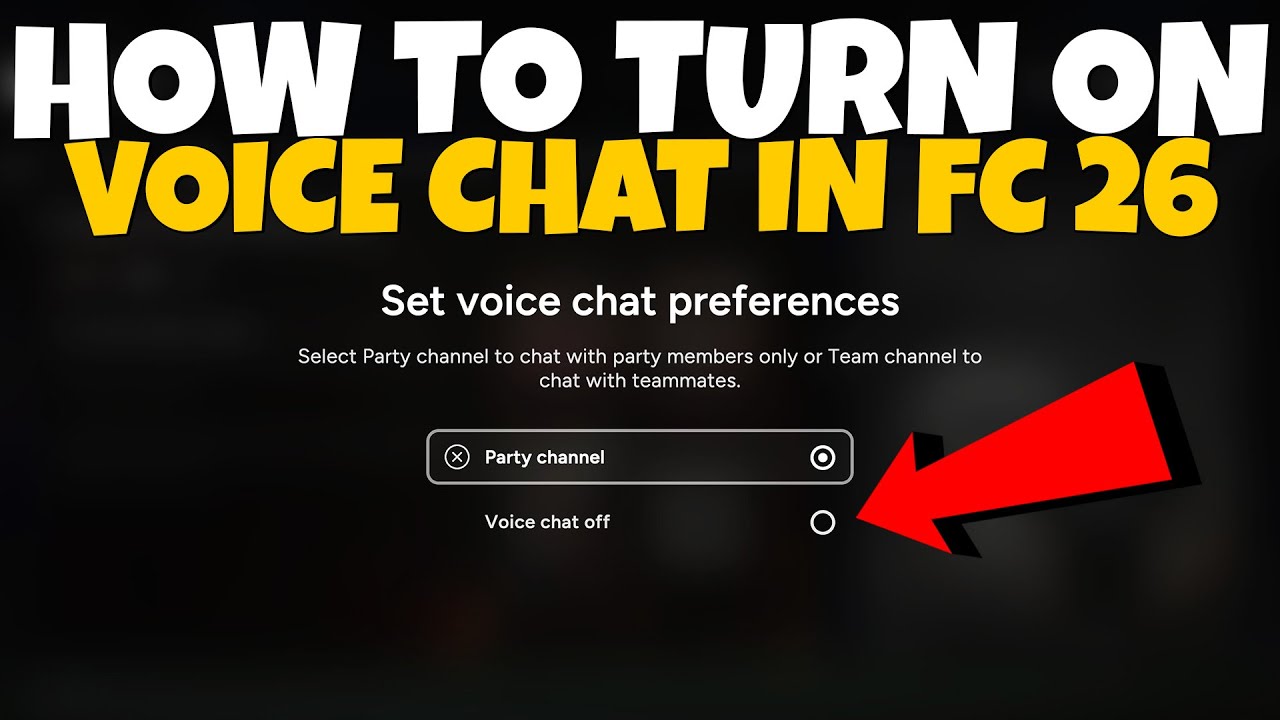
How To Message On Roblox 2026 A Quick Guide . How To TURN ON Fortnite Voice Chat 2026 Enable Mic In Fortnite Xbox . How To Get Voice Chat On Roblox 2026 YouTube . How Does The Roblox Push To Talk Button Work Effectively How To Enable Voice Chat In Roblox 2026.webp. How To Turn ON Voice Chat In FC 26 Enable Voice Chat In EA FC 26
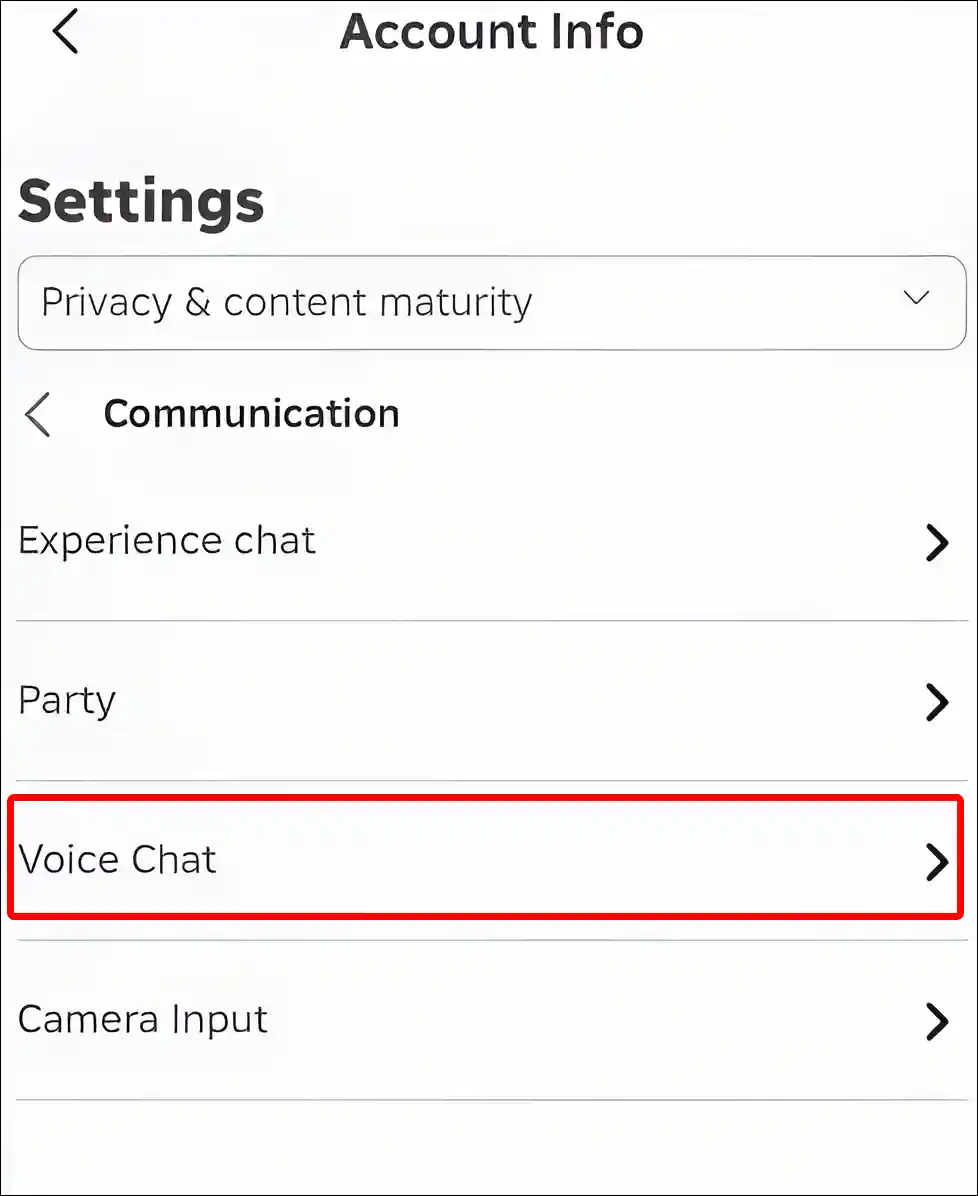


Roblox Voice Chat In 2025 Your Ultimate Guide Roblox App Voice Chat. How To Turn On Voice Chat In Fortnite 2026 Full Guide YouTube . Why Won T My Roblox Voice Chat Work Simple Fixes . Roblox Voice Chat Your 2025 Guide . Turn On Voice Chat In Roblox How To USE Voice Chat In Roblox IPad


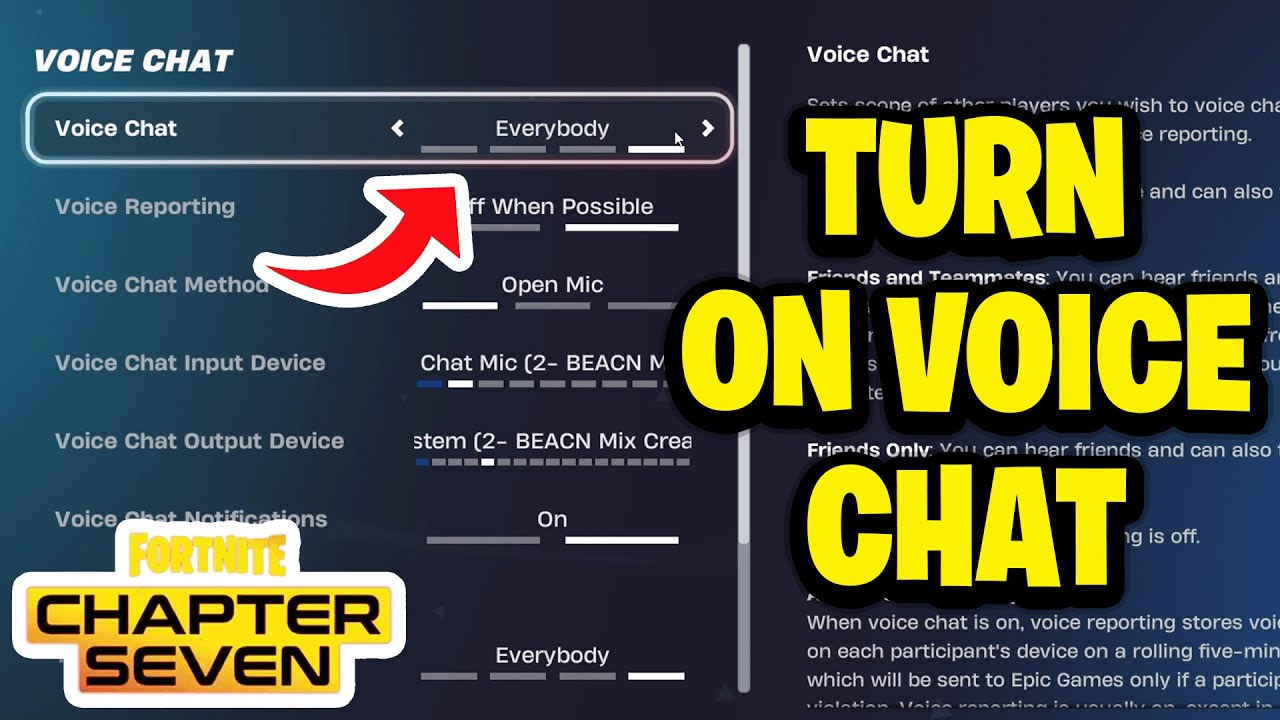

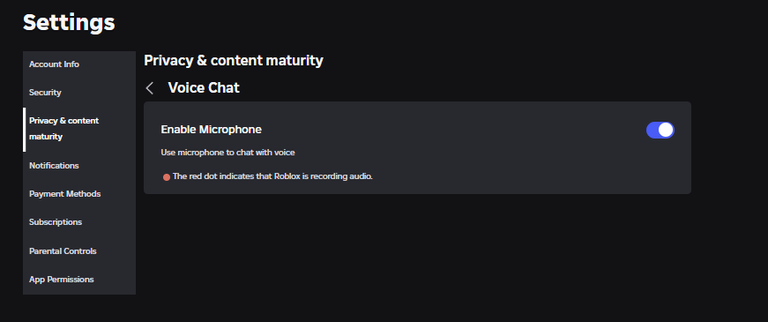
How To Enable Voice Chat On Roblox Instantly How To Turn On Voice . How To Turn On Voice Chat In Roblox How To Enable Voice Chat In Roblox . How To Turn On Voice Chat In Fortnite Chapter 7 YouTube . How To Enable And Turn On Voice Chat Roblox 2024 YouTube . How To Enable Voice Chat In Roblox RoCodes Gg RoCodes 1656 How To Enable Voice Chat In Roblox


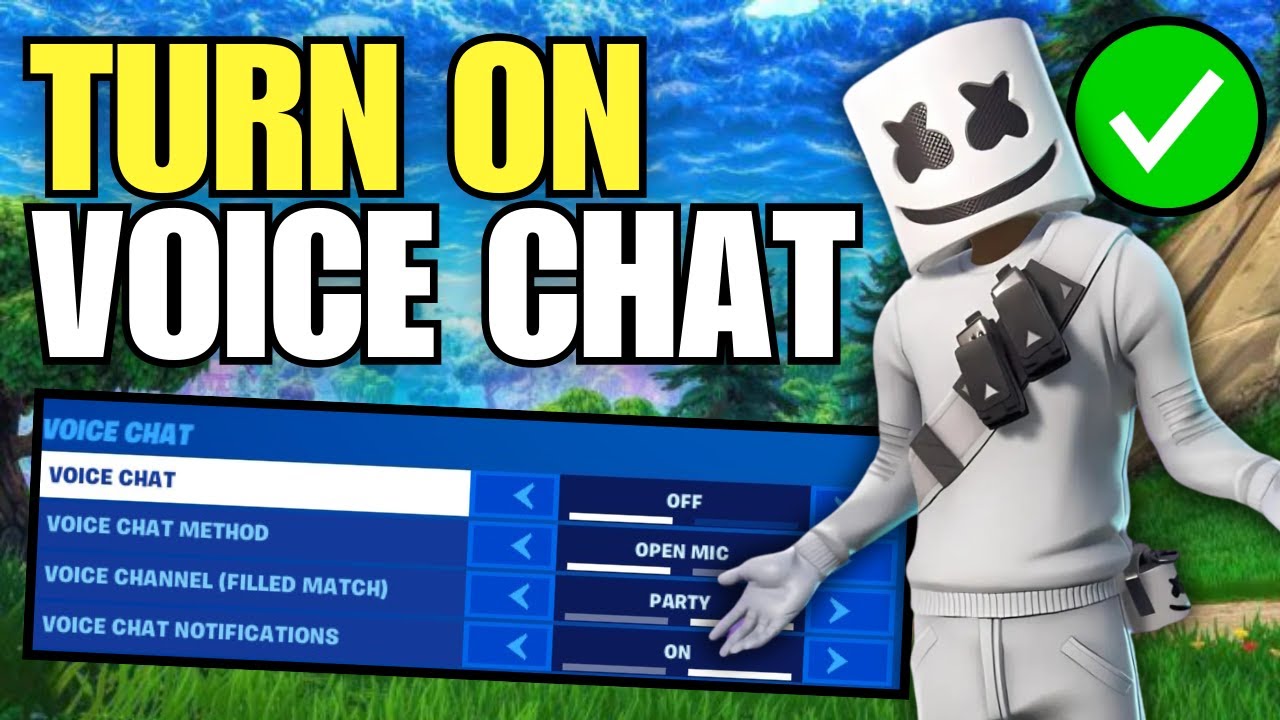
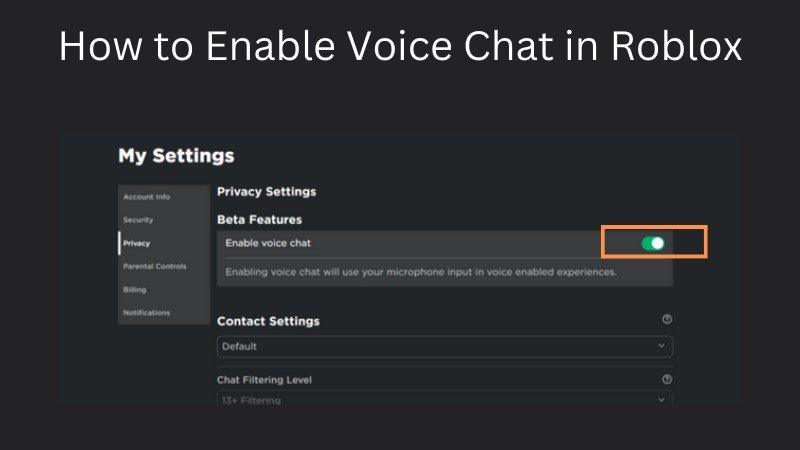

Roblox On Xbox Can You Chat With Your Voice . How To Turn On Fortnite Voice Chat Full Guide YouTube . How To Turn On Fortnite Voice Chat Enable Voice Chat YouTube . How Do I Turn On Voice Activation Enable Voice Chat Roblox Steps . Roblox On Xbox Can You Chat With Your Voice

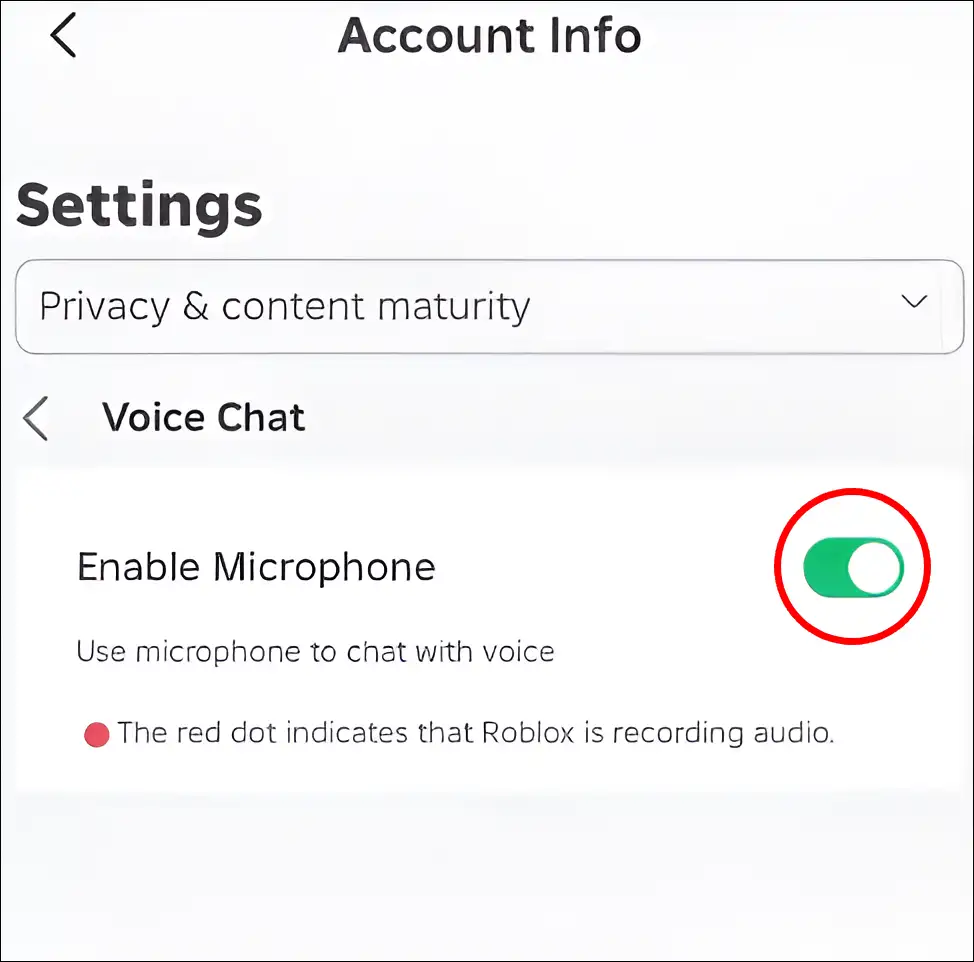

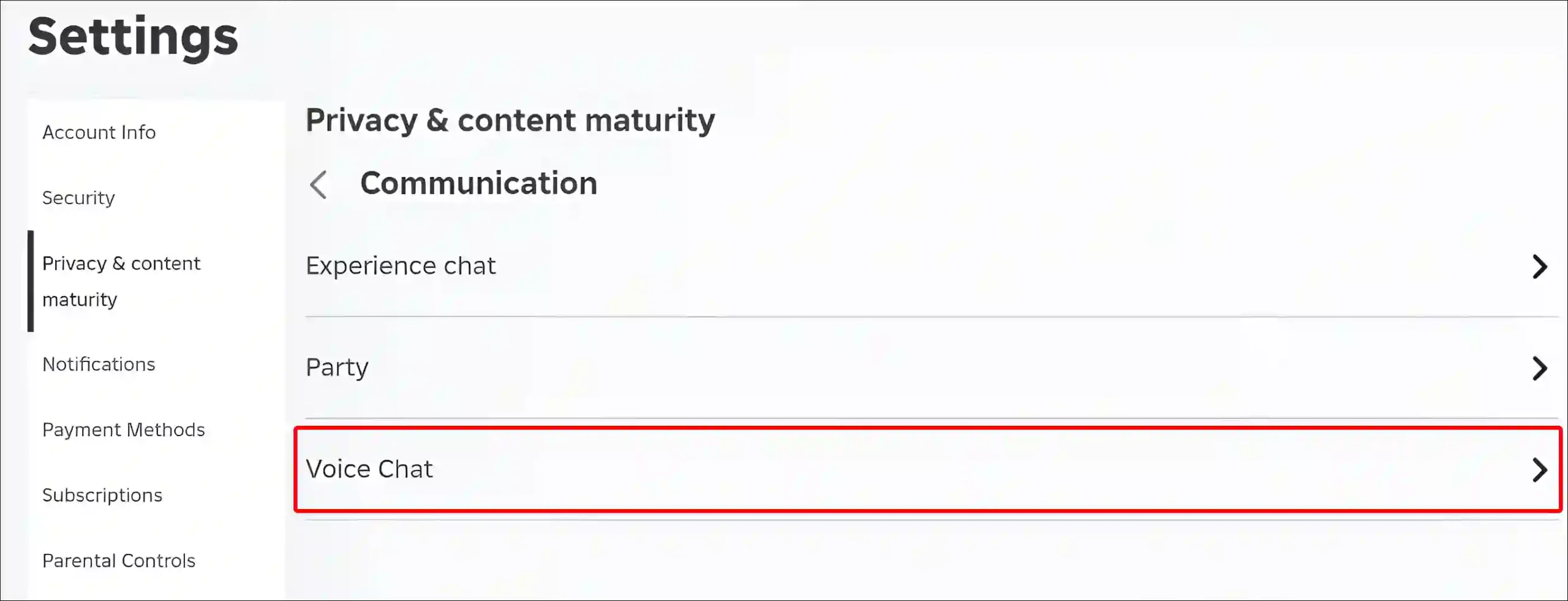
How To Get Roblox Voice Chat On Pc Or Mac Allow Voice Chat Feature In . How To Turn On The Microphone On Roblox Voice Chat Enable Roblox App. How To Turn On Voice Chat In Fortnite Updated Method YouTube . Silence The Chat Disabling Roblox Voice Roblox Voice Chat Settings Scaled.webp. Silence The Chat Disabling Roblox Voice
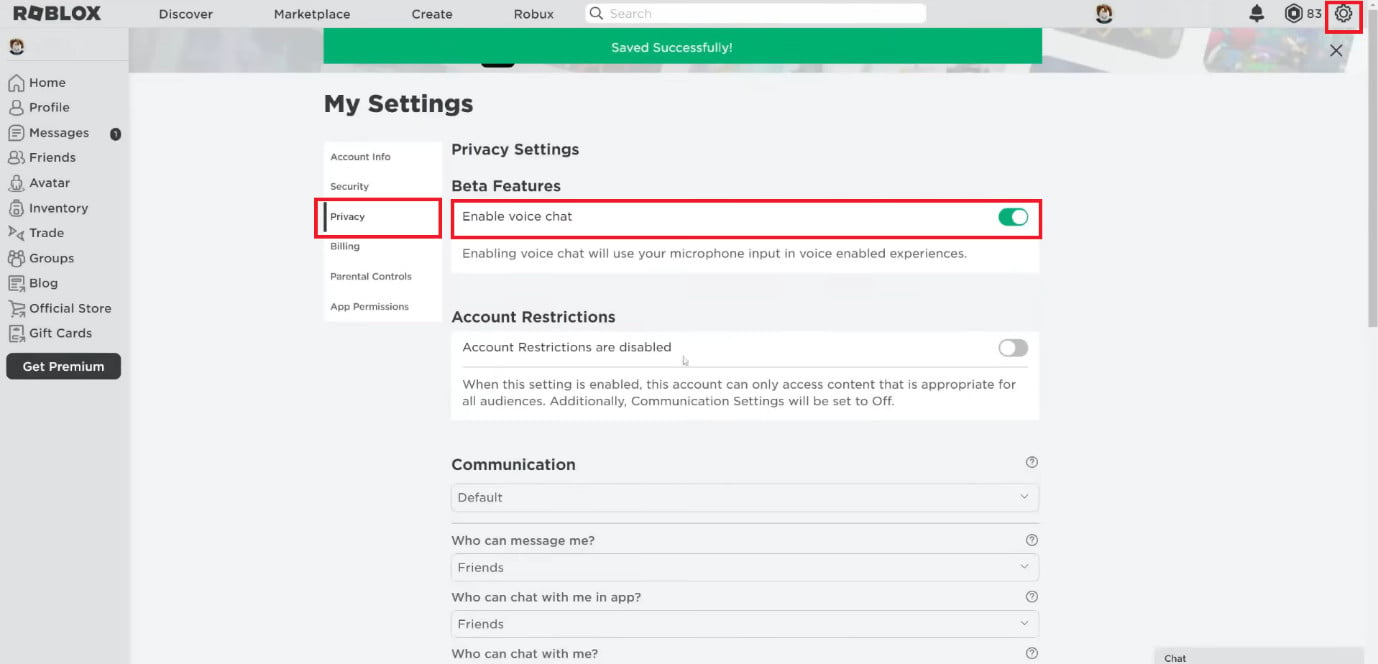


How To Enable Voice Chat In Roblox TechCult Turn The Toggle On For Enable Voice Chat . How To Turn On Fortnite Voice Chat Full Guide YouTube . How To TURN ON Fortnite Voice Chat 2025 Enable Fix Mic In Fortnite . How To Turn OFF ON Voice Chat On Where Wind Meet YouTube . How To Turn Off Voice Chat On Roblox Mobile PC YouTube

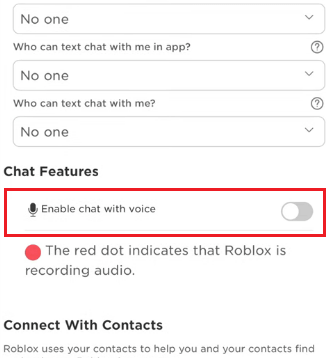


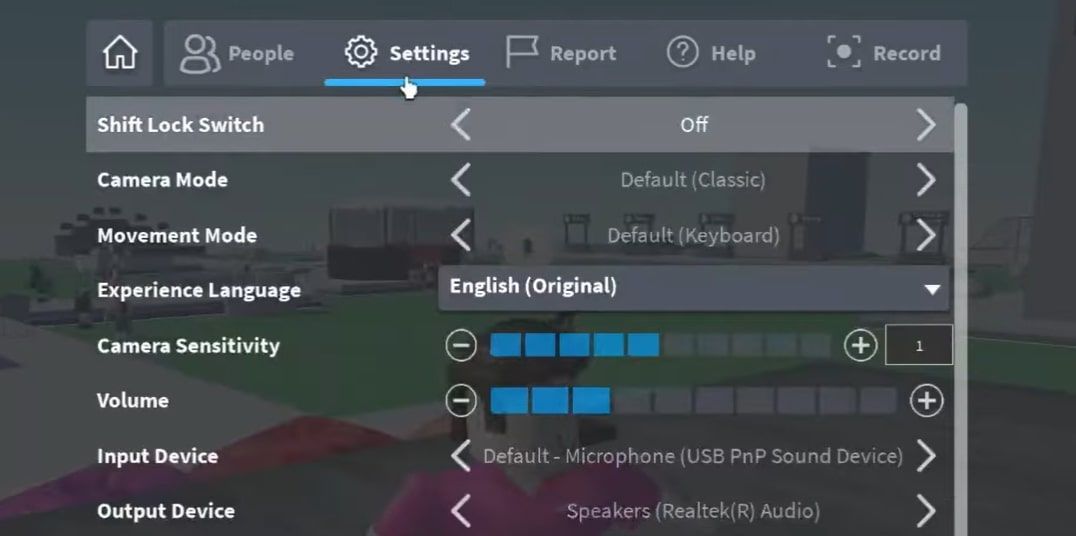
Roblox On Xbox Can You Chat With Your Voice . Roblox Mobile Chat Easy Steps To Turn It On How To Get Voice Chat On Roblox 3 . Silence The Chatter Roblox Chat On Xbox . How To GET VOICE CHAT On Roblox 2026 YouTube . Silence The Chat Disabling Roblox Voice 11 Turn The Volume Up By Clicking The Plus Icon Next To It