Keeping your Roblox application updated on your MacBook is crucial for an optimal gaming experience. As an average gamer balancing work and life, you want smooth, uninterrupted play without encountering frustrating bugs or missing out on the latest features. This comprehensive guide navigates you through the simple steps to ensure your Roblox client is always current, enhancing performance, security, and access to new content. Discover how automatic updates work, what to do if issues arise, and essential troubleshooting tips specifically for macOS users. Avoid common pain points like crashes or lag by staying informed on the best update practices. Elevate your play, connect seamlessly with friends, and enjoy the full potential of Roblox on your Apple laptop. This information is key for staying ahead and ensuring your gaming sessions are always top-notch.
How do I update Roblox on my MacBook?
Roblox typically updates automatically when you launch the application. To manually prompt an update, completely close Roblox Player and Roblox Studio, then relaunch either application. The client will automatically check for and install any available updates before you can play or create.
Why is my Roblox not updating on Mac?
If Roblox isn't updating on your Mac, common culprits include an unstable internet connection, insufficient disk space, corrupted Roblox cache files, or a restrictive firewall/VPN. Try restarting your Mac, checking your Wi-Fi, clearing relevant cache folders, or performing a clean reinstallation of the application.
What's the best way to ensure Roblox stays updated on macOS?
The best way to keep Roblox updated on macOS is simply to launch the application regularly. Roblox's built-in updater handles the process automatically. Additionally, ensure your macOS itself is current, as system updates often include improvements that benefit applications like Roblox.
Can an old Roblox version cause performance issues on my MacBook?
Yes, an outdated Roblox version can absolutely lead to performance issues on your MacBook. Older versions may lack critical bug fixes, security patches, and performance optimizations, resulting in increased lag, frequent crashes, graphical glitches, and overall reduced stability during gameplay.
Should I uninstall and reinstall Roblox to update it on my Mac?
Reinstalling Roblox should be a last resort for updating, but it's often the most effective solution for stubborn update failures or persistent game instability. First, completely delete the existing application and associated files from your MacBook, then download and install a fresh copy from the official Roblox website.
Where can I find the latest Roblox version for macOS?
The latest Roblox version for macOS is automatically downloaded when you launch the Roblox Player or Studio applications, provided an update is available. You can also always download the current official installer directly from the official Roblox website if you need to reinstall.
Are there any specific macOS settings that affect Roblox updates?
Generally, macOS settings do not directly affect Roblox updates, as the app manages its own updates. However, ensure your macOS is up-to-date for compatibility. Also, check system-level firewall settings or any third-party security software that might be blocking Roblox's network access during the update process.
Hey fellow gamers! If you're anything like me, you juggle work, family, and life's demands, but still crave those precious hours unwinding or connecting with friends in Roblox. There’s nothing worse than finally sitting down to play, only to be met with lag, crashes, or realizing you can't join your buddies because your game is outdated. You're not alone. Many US gamers, especially the 87% who game regularly, spending an average of 10+ hours a week, know the frustration of technical hiccups. While mobile gaming dominates, PC and Mac play remain vital, particularly for immersive experiences and social hubs like Roblox. This isn't just about fun; it's about optimizing your relaxation, connecting with your community, and ensuring your MacBook delivers the performance you deserve. We'll cut through the noise and show you exactly how to update Roblox on your MacBook, troubleshoot common problems, and keep your virtual adventures smooth and stress-free. Let's get your game back on track!
Why is Keeping Roblox Updated on Your MacBook So Important?
Keeping Roblox updated isn't just about getting new toys; it's fundamental for a stable, secure, and enjoyable gaming experience on your MacBook. Each update often includes crucial bug fixes that resolve annoying glitches, security patches to protect your account, and performance enhancements that make your games run smoother, reducing lag and improving frame rates. Think of it like maintaining your car; regular tune-ups prevent breakdowns and ensure peak performance. For us busy gamers, an optimized game means more fun and less frustration, letting us make the most of our limited play time.
How Do I Manually Update Roblox on My MacBook?
Good news! Roblox is designed to update itself automatically when you launch the application. However, if you suspect you're not on the latest version or just want to be sure, there are simple steps to prompt a manual check:
Close Roblox Completely: Ensure both the Roblox Player and Roblox Studio are fully quit. You can do this by right-clicking their icons in the Dock and selecting 'Quit' or by using 'Force Quit' (Command + Option + Esc) if they're unresponsive.
Relaunch Roblox: Open the Roblox application from your Applications folder or Dock. When the client launches, it automatically checks for new updates. If an update is available, you'll usually see a progress bar as it downloads and installs. This process typically takes only a few moments.
Restart Your MacBook: Sometimes, a full system restart can resolve lingering issues and ensure all background processes are refreshed, allowing Roblox to update cleanly upon relaunch.
What If Roblox Doesn't Automatically Update on My Mac? (Troubleshooting)
Even with automatic updates, sometimes things go awry. If your Roblox isn't updating, don't panic. Here's a troubleshooting checklist:
Check Your Internet Connection: A stable and fast internet connection is vital. Ensure your Wi-Fi is strong or try connecting via Ethernet if possible. Intermittent connections can disrupt the download process.
Verify Disk Space: Updates require space. Go to 'About This Mac' > 'Storage' to see if you have enough free space. Aim for at least 5-10 GB of free space for seamless updates and game installations.
Clear Roblox Cache Files: Corrupted cache files can prevent updates. To clear them:
Open Finder, then click 'Go' in the menu bar, and select 'Go to Folder'.
Type
~/Library/Cachesand press Enter.Find and delete any folders related to Roblox (e.g., 'com.roblox.RobloxPlayer' or similar).
Repeat the process for
~/Library/Application Supportand~/Library/Preferences, looking for Roblox-related files.
Temporarily Disable VPN/Firewall: If you're using a VPN or a strict firewall, it might be blocking Roblox's update servers. Try disabling them temporarily, update Roblox, then re-enable.
Reinstall Roblox: This is often the most effective solution for stubborn update issues. First, drag the Roblox application from your Applications folder to the Trash and empty the Trash. Then, download the latest installer from the official Roblox website and run it. This provides a fresh, clean installation.
Can Outdated macOS Affect My Roblox Performance?
Absolutely. Just like an outdated Roblox client, an older macOS version can significantly impact your gaming experience. Apple regularly releases updates that include performance improvements, security enhancements, and driver updates that directly benefit graphics-intensive applications like Roblox. Running an older macOS might lead to compatibility issues, reduced frame rates, longer load times, and even crashes. Keeping your macOS up-to-date ensures your MacBook's hardware is communicating optimally with the software, providing the best possible environment for gaming.
How Do I Check My Current Roblox Version on MacBook?
Knowing your Roblox version can be helpful for troubleshooting or simply confirming you're up-to-date. Here's how to find it:
For Roblox Player:
Launch the Roblox Player (it usually updates upon launch).
Once you're in a game, you might not see the version directly. Instead, the update usually happens before you even enter a game.
A more reliable way is to check the application package content. Find the Roblox Player app in your Applications folder, right-click (or Control-click) it, and select 'Show Package Contents'. Navigate to Contents > Info.plist. Open this file with TextEdit, and search for 'CFBundleShortVersionString' or 'CFBundleVersion' to see the version number.
For Roblox Studio:
Launch Roblox Studio.
In the menu bar at the top of your screen, click 'Roblox Studio' and then 'About Roblox Studio'. A window will pop up displaying the current version number.
Are There Any Common Issues After a Roblox Update on Mac?
While updates generally improve things, sometimes new issues can pop up. Common post-update problems on Macs include:
Graphical Glitches: Occasionally, new graphics drivers or changes in Roblox might cause visual artifacts or rendering issues. Ensuring your macOS is also updated can often resolve these.
Performance Drops: Though rare, a new update might introduce performance regressions on specific MacBook models. If this happens, ensure your Mac's drivers are current and consider reporting the issue to Roblox support.
Login Issues: Sometimes, an update might clear saved login credentials or cause temporary server issues. Simply logging out and logging back in often fixes this.
Game Crashing: If Roblox starts crashing more frequently after an update, try clearing your Roblox cache as described earlier, or consider a clean reinstall.
How Can I Optimize Roblox Performance on My MacBook After Updating?
Updating is just one piece of the performance puzzle. To truly optimize Roblox on your MacBook, especially if you're a gamer who balances everything, consider these tips:
Close Background Applications: Free up RAM and CPU cycles by quitting unnecessary apps running in the background. Your browser with 50 tabs? Close it.
Adjust In-Game Graphics Settings: Lower the 'Graphics Mode' or 'Graphics Quality' in Roblox's in-game settings. Finding the sweet spot between visuals and performance is key.
Keep macOS Updated: As mentioned, a current operating system ensures optimal hardware utilization.
Monitor Activity Monitor: Use macOS's Activity Monitor (Applications > Utilities) to identify resource-hungry processes that might be competing with Roblox.
Clear System Cache Regularly: Beyond Roblox's cache, general system caches can build up. Tools like CleanMyMac (use with caution) or manual cleaning of certain directories can help.
When Should I Reinstall Roblox on My MacBook?
Reinstalling Roblox should be considered a go-to solution when other troubleshooting steps fail. It's particularly effective for:
Persistent Update Failures: If Roblox consistently fails to update despite trying manual checks and cache clearing.
Frequent Crashes or Freezes: When the game is unstable, crashing, or freezing regularly, a fresh installation can clear corrupted files.
Severe Performance Issues: If you're experiencing unusually low frame rates or severe lag that wasn't present before and can't be resolved with in-game settings or system optimization.
Corrupted Game Files: If you encounter error messages related to game files or assets, a reinstall ensures you get a clean set of files.
Remember, a clean reinstall involves deleting the application and associated files (caches, preferences) before downloading a fresh installer from the official Roblox website.
It's clear that keeping your Roblox application updated on your MacBook is an essential part of a great gaming experience. By following these steps and troubleshooting tips, you ensure smooth gameplay, access to the latest features, and a secure environment, allowing you to truly relax and enjoy your digital adventures. Staying current with your games, just like staying current with life, ensures you're always ready for what's next.
What's your biggest gaming challenge on your MacBook? Comment below and let's conquer it together!
FAQ Section
How often does Roblox release updates for Mac?
Roblox typically rolls out updates on a weekly basis, though major feature updates might have a different schedule. The client usually checks for these updates automatically upon launch.
Do Roblox updates require a lot of disk space on my MacBook?
While individual updates are generally small, accumulated updates and new game assets can take up space. It's wise to have at least 5-10 GB of free disk space for Roblox and system operations.
Will updating Roblox delete my game progress or saved data?
No, updating Roblox will not delete your game progress or saved data. Your progress is tied to your Roblox account and stored on Roblox's servers, not locally on your MacBook.
Is it possible to roll back to an older Roblox version if an update causes problems?
Unfortunately, Roblox does not officially support rolling back to older versions. The platform requires all users to be on the latest client for compatibility and security reasons. If an update causes issues, report it to Roblox support and try troubleshooting steps like a clean reinstall.
Why does Roblox still lag on my MacBook even after updating?
Lag after updating can be due to various factors not directly related to the update itself, such as high in-game graphics settings, other demanding applications running, an unstable internet connection, or your MacBook's hardware limitations. Try optimizing in-game settings and closing background apps.
Do I need an active internet connection to update Roblox on my Mac?
Yes, an active and stable internet connection is absolutely necessary to download and install Roblox updates. The update files are retrieved from Roblox's servers, requiring network access.
Updating Roblox on MacBook is typically automatic when launching the app. Manual update checks can be done by relaunching Roblox or restarting your Mac. Troubleshooting involves checking internet connection, disk space, clearing caches, or reinstalling. Regular updates improve performance, add features, and enhance security. Outdated macOS can impact Roblox functionality.
35



How To Update Roblox PC Mac IPhone Android Xbox How To Update Roblox . How To Update Roblox In 2026 Fix Error Code 280 On PC Mobile Xbox Roblox Update It.webp. How To Download Roblox On Mac 2026 Updated Method YouTube . How To Download Roblox On Mac Step By Step YouTube . How To Install Roblox On Mac MacOS YouTube




How To Update Roblox On Mac YouTube . How To Update Roblox App On Mac Or Windows Update Roblox Macbook . How To Download Roblox On Mac Full Guide YouTube . How To Download And Install Roblox On MacBook 2024 YouTube . How Do You Update Roblox On Windows 11 For 2026 How To Update Roblox On Windows Mac Complete Guide

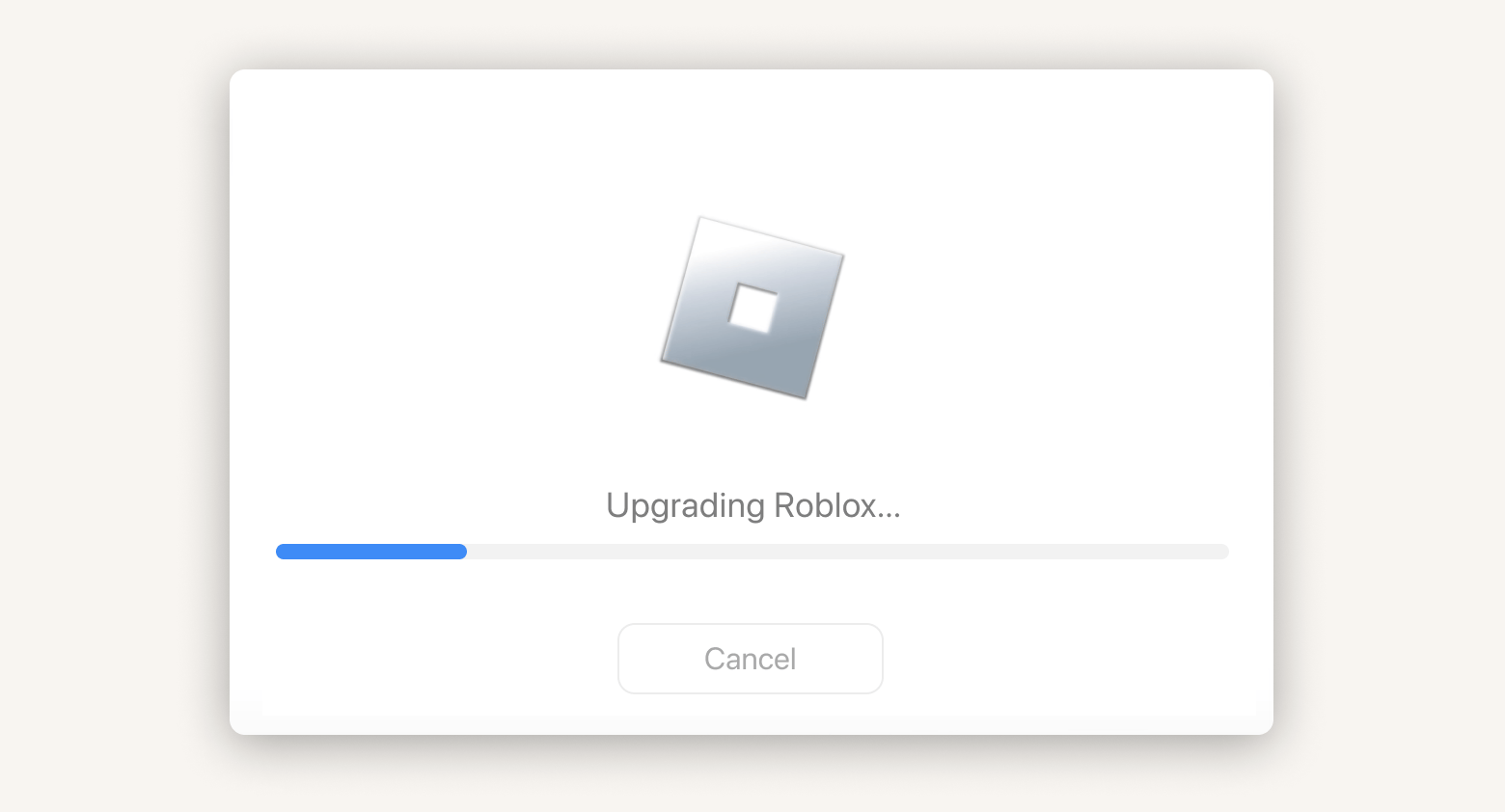
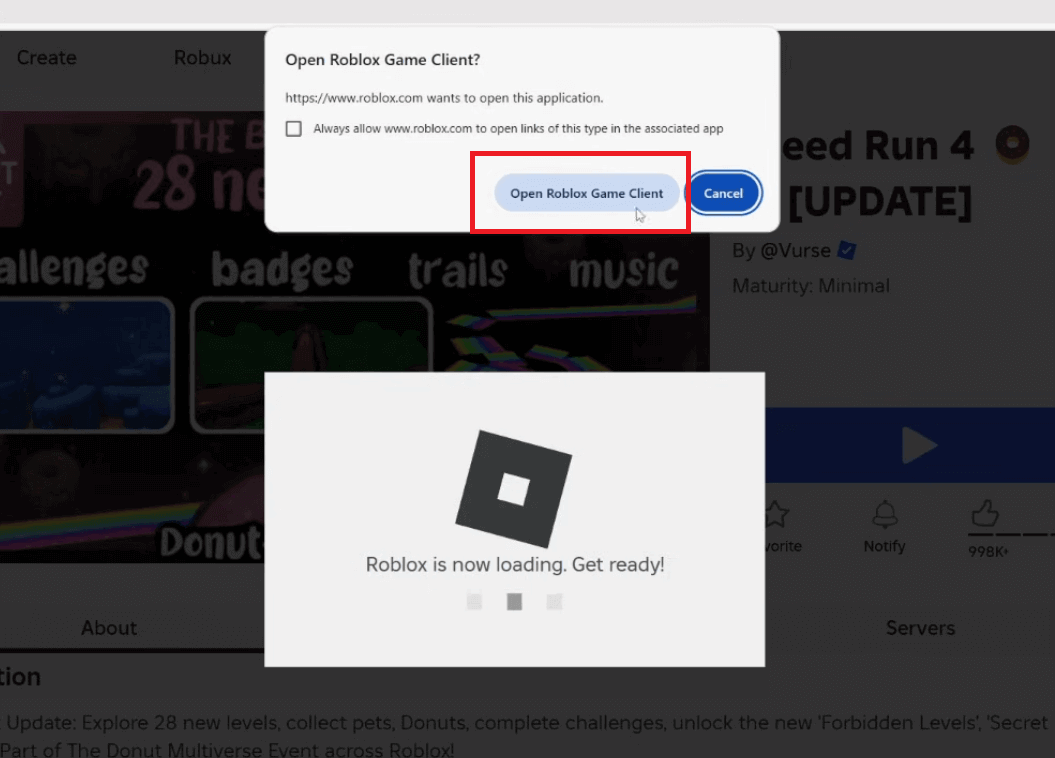
How To Update Roblox On Mac A Guide How To Update Roblox On Mac . How To Update Roblox On Mac 2026 Roblox Updating Screen . How To Update Roblox On Windows And Mac 2023 Beebom How To Update Roblox On Windows And Mac . How To Download Roblox On Mac OS YouTube . C Mo Actualizar Roblox En Un PC Mac Android IPhone Manualmente How To Update Roblox 2
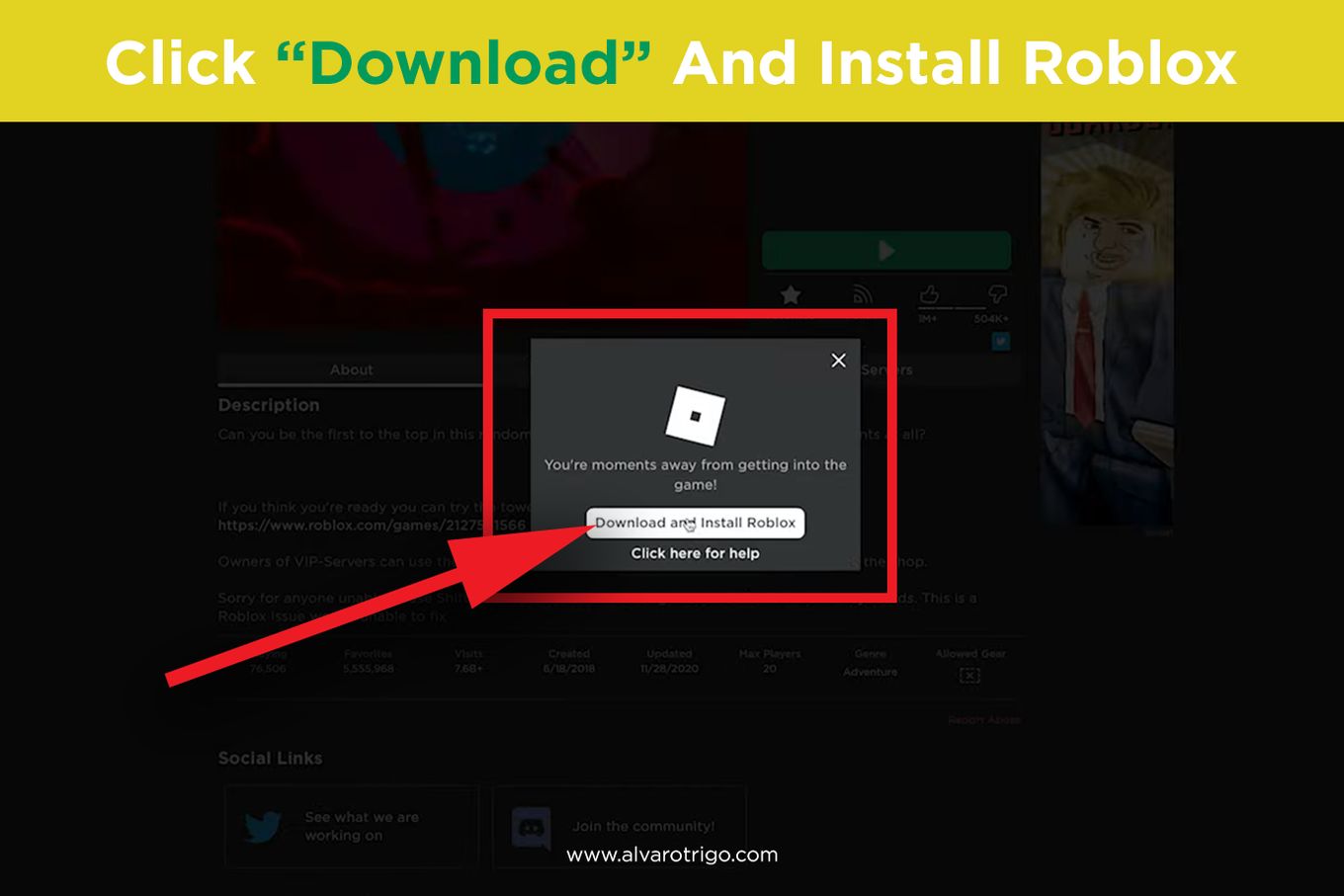

How To Download Roblox Images In 2026 A Quick Guide Download And Install . Roblox Mac Update 2025 How To Update Roblox On Windows Mac ATLG V4 460px Update Roblox Step 9 . Hvordan Man Opdaterer Roblox P PC Mobil Og Konsol 2026 Guide C54c81b2 Cc3a 47b7 Bc75. How To Get Roblox On MacBook Ultimate Guide Roblox 1200x675 . Solved Roblox Not Able To Update On Mac How To Fix Summary Roblox Not Able To Update On Mac



How To Update Roblox On Windows And Mac 2024 Beebom Update Roblox Microsoft Store . Update Roblox Easily A Simple Guide Roblox Wont Update 1686481973 . Unveiling The Secrets Of Updating Roblox On MacBook HOW DO YOU UPDATE ROBLOX ON MACBOOK 1 . How Do You Update Roblox On Windows 11 For 2026 . How To Update Roblox On Your IPad Quickly


How To Manually Update Roblox On Windows And Mac TechBriefly Update Roblox On Computer And Mobile Devices Guide . How Do You Update Roblox On Windows 11 For 2026 . How Do You Update Roblox On Windows 11 For 2026 . Install Roblox At Stanley Blake Blog How To Install Roblox On MacBook Air 1024x683 . How To Update Roblox On Mac 2026 How To Update Roblox On Mac 1200 628.webp


C Mo Actualizar Roblox En Un PC Mac Android IPhone Manualmente How To Update Roblox Thumbnail . Roblox On Mac How To Download Play It On MacBook Air Pro New. How To Update Roblox On Mac A Complete Guide How To Update Roblox On Mac . How To Update Roblox On PC Or Laptop Full Guide 2026 YouTube . How To Get Roblox On MacBook Ultimate Guide 1200x1769